framer embed how-to tested
How to add a 3D photo to Framer with the Embed component
Framer's Embed component takes raw HTML, so an interactive 3D photo is one iframe away — and it publishes on the free plan. Where the component lives, sizing per breakpoint, the transparent-WebM route via the Video component, and what the free plan gates.
Aman Jha·September 17, 2026·updated September 18, 2026·6 min read
Framer's Embed component takes raw HTML, so an interactive 3D photo in Framer is one iframe away: a photo goes into Gifsy, a scene with real depth comes out, and the visitor can drag it on your published site. This is the Framer chapter of the complete guide to interactive 3D photos for websites; the platform-agnostic version is the full iframe embed guide, and the Webflow one is here.
Quick answer: the 5 steps
- Make the 3D photo. Upload one photo at gifsy.fun/create, generate, and click Publish.
- Copy the embed snippet. One iframe, from the publish panel.
- Insert an Embed in Framer. Insert panel → Embed → set Type to HTML → paste.
- Size it like a layer. Set the Embed's width and height per breakpoint; give the iframe 100% of both.
- Publish and try it on a phone. Drag sideways to orbit; swipe to scroll.
The Embed component
- Open the Insert panel (the + in the toolbar, or ⌘/Ctrl + I) and search for Embed.
- Drop it on the canvas where the scene should sit.
- In the properties panel on the right, set Type to HTML (the default is URL).
- Paste the snippet into the HTML field:
<iframe
  src="https://www.gifsy.fun/embed/<id>"
  title="Interactive 3D photo: …"
  loading="lazy"
  style="width:100%;height:100%;border:0;display:block"
></iframe>
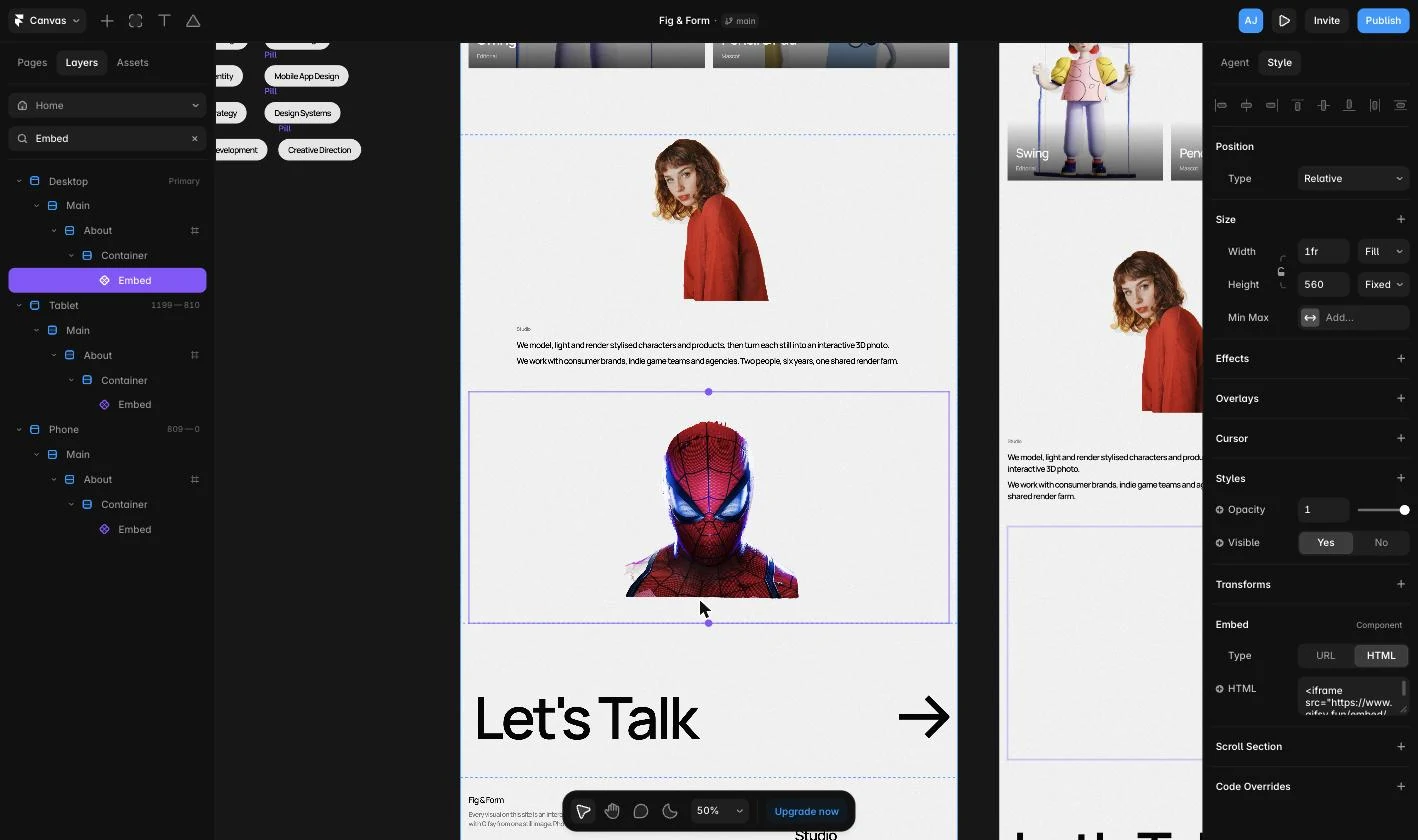
Two differences from the copied snippet: the height is 100% rather than a fixed 500 px, because in Framer the component itself is the box you size; and there is a title for screen readers. Framer may warn that some sites can't be embedded — Gifsy's embed pages set no framing restriction, so it will render.
We tested this on a free Framer plan by remixing a free marketplace template and replacing every visual with a Gifsy scene; the result is live at figandform.framer.website. The Embed published without an upgrade prompt. The one gotcha we hit: on the Phone and Tablet breakpoints an absolutely positioned Embed or Video collapsed to zero width until its left/right pins were set again per breakpoint.
Sizing per breakpoint
Treat the Embed like an image layer. Give it a fixed height or a fixed aspect ratio in the properties panel — 4:3 or 16:9 for a landscape scene, 3:4 for a portrait — and set width to fill or relative. Then switch to the tablet and phone breakpoints and change the ratio there: a 16:9 hero on desktop is a sliver on a phone, so 4:5 or 1:1 reads better. Because the iframe inside is 100%/100%, it follows whatever box you give it.
Using it as a hero
- Put the Embed in the hero section, pinned to all four edges, behind the text stack.
- Remove
loading="lazy"from the snippet — it is above the fold. - Keep the copy clear of the subject, and make sure the text stack doesn't sit on top of the whole frame or it will block the drag. In Framer, a text layer only intercepts the pointer where it has content, so a left-aligned headline over a right-of-centre subject works.
The other route: a transparent WebM in the Video component
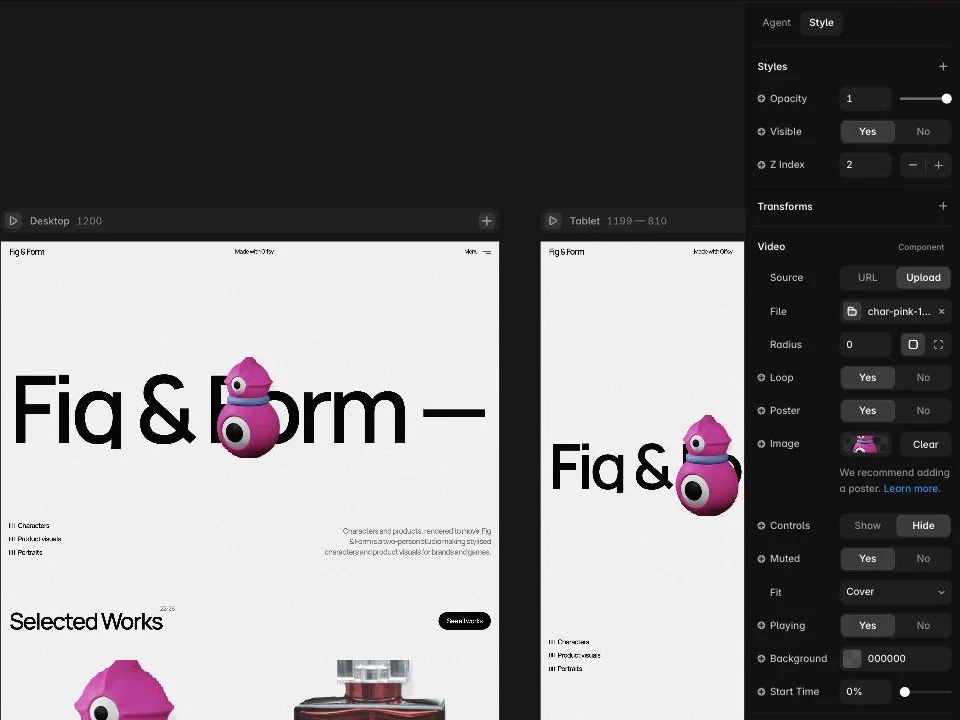
If you don't need the visitor to drag the scene, export the orbit as a WebM with an alpha channel and use Framer's own Video component (Insert → Media → Video → Upload). It accepts .mp4 and .webm only — no .mov, no GIF (there is a separate GIF component) — and serves the file byte-for-byte, so the transparency survives and the character sits straight on your page background. Set Loop and Muted on, Controls off, Fit to Cover, and give it a poster PNG with alpha for the first paint. CMS image fields don't take video, so in a collection list use the poster and put the video on the detail page.
In a CMS collection
Add a plain-text field to the collection for the Gifsy scene id, then in the collection page's Embed connect that field into the iframe's src. Each item then carries its own scene — one template, many 3D photos.
Before you publish
- Preview on a phone: sideways drag orbits, vertical swipe scrolls.
- Check the frame has a
title. - The viewer honours the OS reduced-motion setting on its own (no auto-orbit; drag still works). If your page has a lot of copy, a subtler motion setting at creation helps everyone else too.
- Scenes on a free account show a small “Made with Gifsy” badge in the frame; buying any credit pack (from $9) removes it. Commercial use is allowed on a free account, so client work is fine.
What the free plan does and doesn't allow
Checked on 18 September 2026. Free: publish to a random *.framer.app URL and claim a name.framer.website subdomain in Site Settings → Domains; CMS with one collection; Layout Templates; the Embed component (HTML or URL); Video uploads; Forms. Upgrade-gated: custom domains, password protection, canonical URL, branching and staging. Paid tiers were Basic and Pro (regional pricing); they raise the CMS collection, page and bandwidth limits rather than unlocking embeds.
FAQ
Can I add a 3D photo to Framer without code?
Yes. Framer's Embed component accepts raw HTML, and the whole thing is one iframe you paste in. You never write code; you set the component's size like any other layer.
Does the Embed work on Framer's free plan?
Yes. We published a free-plan site (figandform.framer.website) with the Gifsy iframe in an Embed component and the scene renders and drags on the live page. The free plan gates custom domains, password protection and canonical URLs — not embeds.
Can I use a transparent WebM of the scene instead of the iframe?
Yes. Framer's Video component uploads .mp4 and .webm and serves the file unchanged, so a VP9 WebM with an alpha channel plays transparent over your page background in Chrome, Edge and Firefox. Safari needs an HEVC-alpha .mov, which the component doesn't accept — for Safari visitors, use the iframe or an opaque MP4.
Why does Framer say some sites can't be embedded?
Some sites send headers that forbid being placed in an iframe. Gifsy's embed pages are built to be framed and set no such restriction, so the warning doesn't apply.
Does it work in Framer's preview and on mobile?
Yes. The frame renders in Preview and on the published site, and on a phone a finger drag orbits the scene while a vertical swipe scrolls the page.
Can I remove the "Made with Gifsy" badge?
Yes. Buy any 3D model credit pack (from $9) and the badge comes off all your embeds, including ones already published. On a free account every scene keeps a small badge inside the frame. Commercial use is allowed either way, so client sites are fine.
Is this different from Framer's own 3D transforms?
Yes. Framer's 3D transforms rotate flat layers you already have. A Gifsy scene has per-pixel depth estimated from one photo, with the subject separated from its own background, and the visitor orbits it by dragging.
Make a 3D photo from your own image. Related: the full iframe embed guide, the Webflow version, and how 3D photos work.